

We’re pleased to announce our brand new display with significant improvements in battery life and performance.
- 30+ hours continuous use
- Wireless connection to your Boost system
- Easily set assist level
- Recharge in under an hour via USB-C (including from your Boost Full-Size battery)
- Distance & time trip function
- Always-on backlight
- Future functionality with free upgradeable firmware (as available)
- Guaranteed IP67 waterproof
- Fully compatible with all Boost systems ever sold
- Believed compatible with all Garmin style mount systems (mount is included)
Display Screens
Toggle between screens either through the Main Menu or by clicking the Right button.
Focus

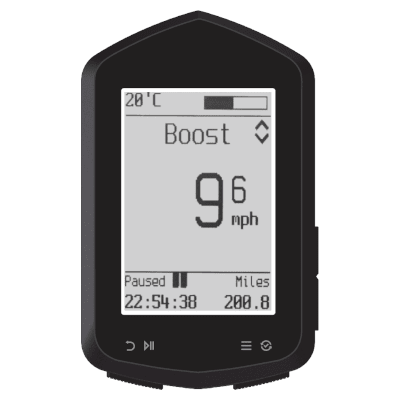
Focus screen – this shows minimal data so you can clearly see what’s going on.
- Temperature – this is the internal temperature of the display and will change more slowly than the external air temperature. It will increase above ambient temperature during charging due to internal heat generated by the charging system.
- Battery gauge – this is a very approximate view of the Boost system battery level, based on the battery voltage. Battery range & power reduces significantly when the air temperature is below 10 degrees celsius
- Speed. Shown in the Boost system’s units. You can change the Boost system’s speed units via the Boost app.
- Trip elapsed time & distance. Trip distance may differ from GPS tracking due to differences in wheel circumference or tyre pressure.
Detail

Detail screen – this shows extra data items for diagnostics including battery level on the displays plus Boost system
Buttons
Your display has four buttons, called Up, Down (on the right of the display) and Left, Right (on the bottom of the display).
Up & Down buttons
- In display modes in normal riding, these change the assist level.
- From lowest to highest assist modes, these are Off, Eco, Boost & Super. Super automatically returns to Boost mode after ten seconds.
- The Up & Down buttons are used in menus to change the selected item and in settings to change values.
Left button
- In display mode, this toggles the trip to Running or Paused.
- In menu screens, this usually exits the menu or returns to a previous screen.
Right button
- In display mode, click once to move the display through Focus & Detail screens.
- Hold for over two seconds then release to access the main menu
- Hold for over four seconds to shut down the display
Auto-shutdown
Your display will automatically shut down if both of the following are true
- The display has not received any data from the Boost system for over sixty seconds (probably it’s been turned off)
- No buttons have been clicked for over sixty seconds
Turning off your display
Hold the Right button for over four seconds to turn off your display. You can also shudown via the Main Menu.
Changing power modes
- When in Focus or Detail screen, click the Up or Down buttons to set the assist level.
- When in Boost mode, click Up to access Super boost mode. This will give extra assist for ten seconds and then return to Boost mode.
- Off temporarily disables the motor drive. The drive is switched on when the Boost system is turned off and then on again, or a different assist level is selected.
Trip function
- Trip allows you to keep track of how long you’ve been cycling and how far
- Click the Left button to toggle between Paused and Running modes. In Running mode, the heading above the elapsed time will show ‘Hours’
- Hold the Left button for over two seconds then release to reset the trip elapsed distance and time. The Trip will automatically pause.
Main Menu
- To access the Main Menu, go to one of the Display Screens (Focus or Detail) and hold the Right button for over two seconds then release. Note that the display will shutdown if this button is held for over four seconds.
- The Main Menu lets you choose your Display Screen
- Your can also choose to ‘Forget’ the currently paired Boost system. The display will forget its paired system then shutdown, and when turned on, will search for another Boost system.
- Shutdown – puts the display into a low power mode ready to rapidly switch on.
Connecting to a Boost system
- Your display should be provided ready to connect to the first Boost system it finds when turned on. Turn on your Boost system and then the display and the display will connect to the first Boost system it finds.
- You may have multiple Boost systems or wish to connect to a new Boost system. Remember that each Boost system can only connect to one display at a time – if you are already connected via the Boost phone app, the Boost system will not be found by your display. Set your Boost app to ‘Disconnected’ or temporarily turn off Bluetooth on your phone. Make sure any other Boost displays are also turned off to avoid one of them grabbing the connection.
- Use the ‘Forget’ option on the main menu to forget previous pairing. Your display will turn off, and when you click to turn it on, it’ll search for a new Boost system.
It is possible that your display has paired with a system during testing at Boost HQ so you may need to ‘Forget’ the current Boost system to find your display.
Changing wheel size
Wheel size is set in the Boost app which may require mechanic level login. For compliance reasons we are unable to allow wheel size to be changed on the Boost display.